You’ll need a Gmail account with mail merge enabled. Check your plan.
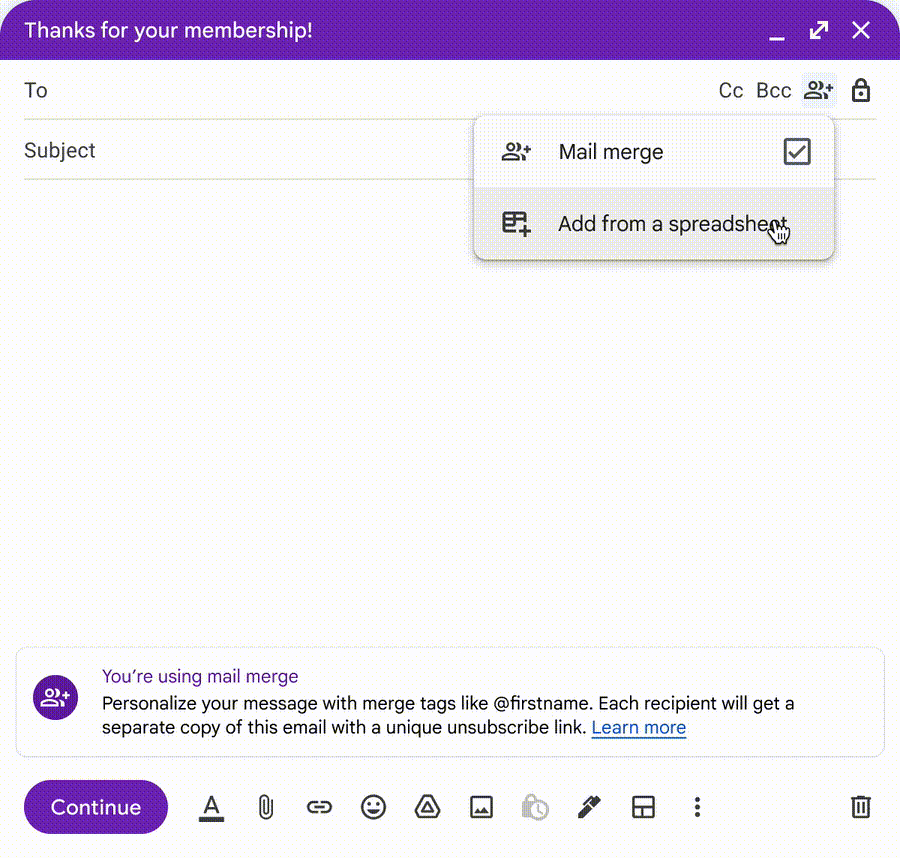
1. Turn on mail merge
Open Gmail and select Compose. Beside the To field, select Use mail merge and turn it on.
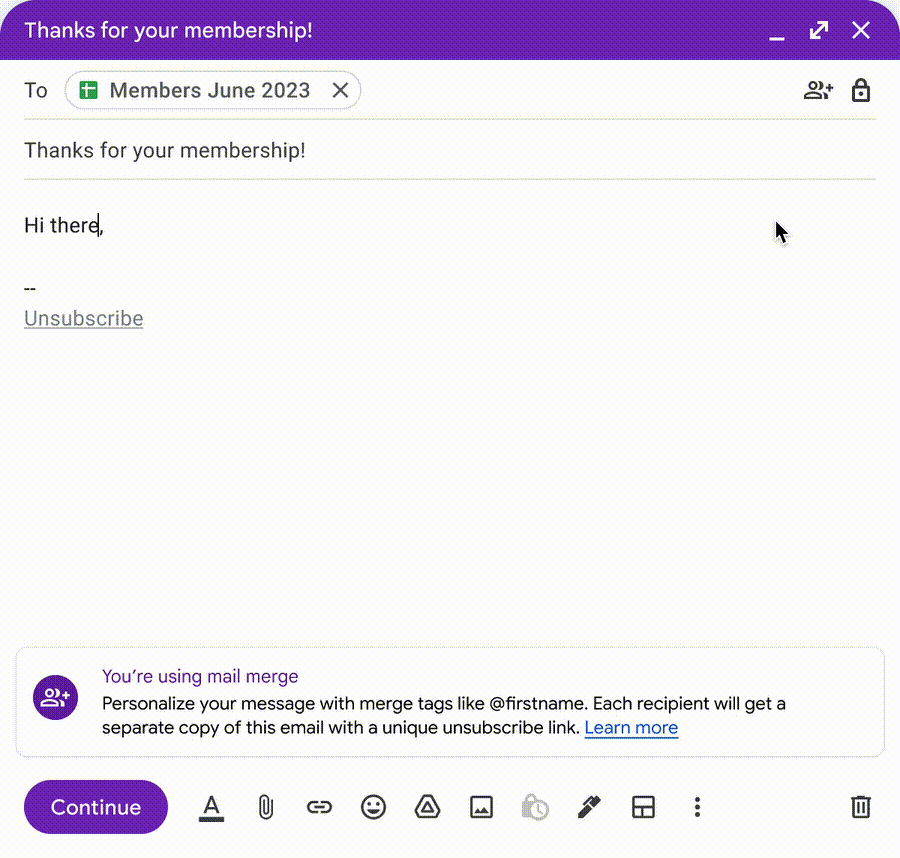
2. Connect your contact sheet
Select Add from a spreadsheet, choose your sheet and select Insert. Match the email and name columns, then select Finish.
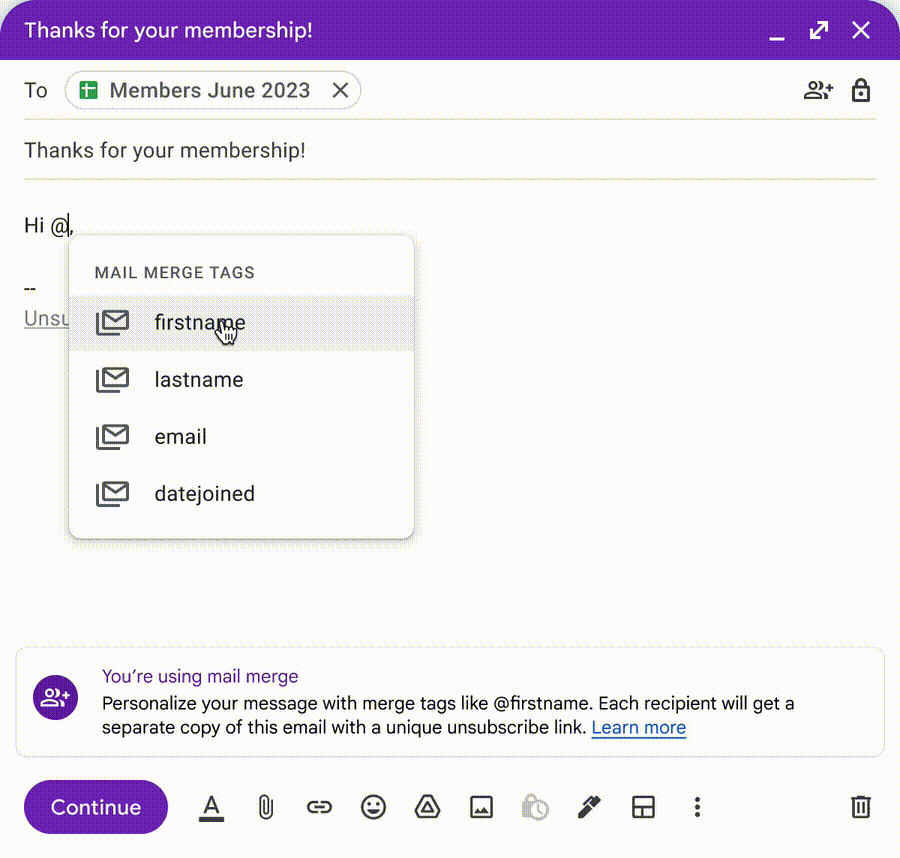
3. Paste your email
Paste your draft. Type @ to insert a first-name tag or another column from your sheet. Keep the subject line plain.
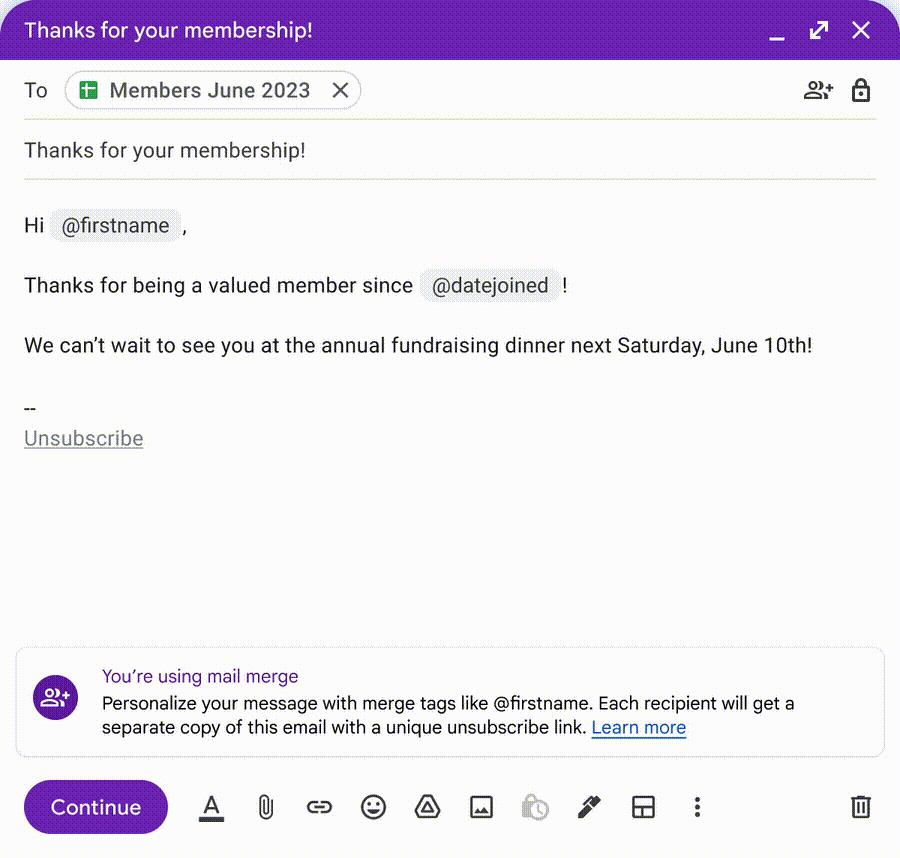
4. Test, then send
First send to a sheet containing only your own inbox. Check the names, links and formatting. Then connect your contact list and send.
Gmail screenshots from Google’s mail merge walkthrough. Select a screenshot to enlarge it.
After sending
Reply to interested prospects and book your calls. Remove people who replied, unsubscribed or bounced before sending follow-ups.